


Article Highlights / Key Points
- Apple’s iOS 27 Beta 1 is causing iPhone 15 Pro devices to become completely unresponsive after a force restart.
- Affected iPhones show a black screen and do not respond to charging or powering on.
- DFU mode on a Mac or PC is currently the most reliable way to recover a bricked device.
- Restoring through DFU will erase all apps and data, so having a backup is essential.
- Apple has not officially acknowledged the issue yet, and it is still unclear if non-Pro iPhone 15 models are affected.
What Is Happening With Apple’s iOS 27 Right Now
If you have been thinking about jumping on Apple’s iOS 27 as soon as it dropped, I completely understand the excitement. Every year, Apple announces something that makes you want to install it the same day. But this time, I want to share something important before you do anything.
Apple’s iOS 27 was announced at WWDC 2026, and the developer beta became available shortly after. The public release is expected in September, but many users went ahead and installed the developer preview early. That decision is now causing real headaches, especially for people who own an iPhone 15 Pro.
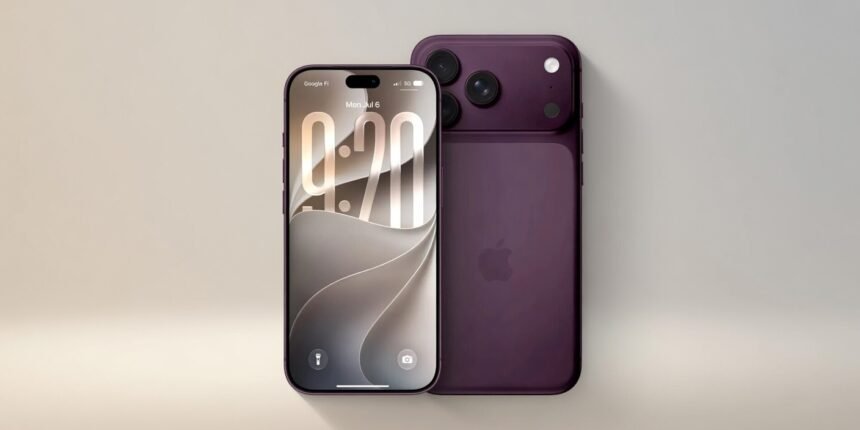
Reports are coming in from multiple iPhone 15 Pro owners saying their devices have been completely bricked after installing Apple’s iOS 27 Beta 1. The phones are unresponsive, the screens stay black, and neither restarting nor plugging in a charger brings them back. This is not a minor glitch. This is a device that stops working.
What Triggers the Problem
The issue seems to happen specifically after a force restart. When users try to force restart their iPhone 15 Pro after installing Apple’s iOS 27 Beta 1, the device goes dark and does not come back on. It does not matter whether you hold down buttons, connect it to a charger, or wait it out. The phone does not respond.
What makes this particularly frustrating is that force restarting is something people do all the time when a phone freezes or misbehaves. It is a standard troubleshooting step. On Apple’s iOS 27 Beta 1, doing exactly that can leave you with a device that looks and acts like a very expensive paperweight.
It is still not confirmed whether the standard iPhone 15 models are affected. The reports so far are focused on the 15 Pro and 15 Pro Max. But given the uncertainty around Apple’s iOS 27 right now, it is worth being cautious regardless of which model you own.
How to Fix a Bricked iPhone After Installing Apple’s iOS 27
If you have already updated to Apple’s iOS 27 and your iPhone 15 Pro has gone unresponsive, do not panic just yet. There is a recovery method that has worked for many users, and it involves putting your iPhone into DFU mode using a Mac or Windows PC.
Here is what you need before starting. You will need a Mac or a Windows PC, a Lightning or USB-C cable, and either the Finder app on Mac or the Apple Devices app on Windows. Once everything is ready, connect your iPhone to your computer and follow this button sequence carefully.
First, quickly press and release the volume up button. Then quickly press and release the volume down button. After that, press and hold the side button for five seconds. Without letting go of the side button, also press and hold the volume down button. After another five seconds, release the side button, but keep holding the volume down button. If done correctly, your Mac or PC should recognize your iPhone in DFU mode.
Once your device is recognized, click Restore iPhone and wait for the process to finish. Your iPhone should reboot with a fresh installation of iOS 26.5. Keep in mind that this process wipes everything from your device, including apps, photos, and personal data. You will also need your Apple ID and password to get past the activation lock after restoration.
Some users have reported that they cannot get their device into DFU mode at all. If that happens to you, the best next step is to contact Apple Support directly or visit an authorized service provider.
Why Older and Even Recent Models Can Be Vulnerable
Beta software is always a gamble, and Apple’s iOS 27 is no exception. The reason certain models get hit harder comes down to how the new operating system interacts with the hardware at a low level. Beta builds are not polished releases. They are early versions being tested, and sometimes they expose conflicts between software and specific hardware configurations that Apple has not yet resolved.
The iPhone 15 Pro runs Apple’s A17 Pro chip, which is powerful but still subject to firmware-level interactions that can go wrong during an early beta. Apple’s iOS 27 introduces significant changes under the hood, and those changes are not always stable across every device configuration in the first beta release.
This is something we at Paradox Technology always advise readers about during beta season. No matter how exciting the new features look, the first developer beta is never meant for your primary device.
Should You Install Apple’s iOS 27 Right Now?
Honestly, my advice is to wait. Apple’s iOS 27 brings genuinely interesting updates, and I get why people want to try it early. But if your iPhone is your main phone, and especially if you own an iPhone 15 Pro, this is not the right time to update.
Apple will almost certainly release a fix in Beta 2 or Beta 3 once the bricking issue is identified and addressed. Waiting a few weeks means you get to enjoy Apple’s iOS 27 without the risk of losing everything on your device or being left with a phone that does not turn on.
If you are already on Apple’s iOS 27 Beta 1 and your device is still working fine, be very careful about force restarting your phone. Avoid doing it unless necessary, and make sure you have a full backup saved to iCloud or your computer before anything else.
Always Back Up Before Any Update
This situation is a strong reminder that backing up your iPhone before any update is not optional. It is essential. Whether you are installing Apple’s iOS 27 or any other update, having a recent backup means that even if something goes wrong, your photos, contacts, messages, and apps are safe.
You can back up your iPhone through iCloud by going to Settings, tapping your name, selecting iCloud, then iCloud Backup, and tapping Back Up Now. You can also connect your phone to a Mac or PC and back it up through Finder or iCloud. Either way, do it before you touch any update, especially a beta.
What to Expect Next From Apple
Apple typically moves quickly when a major bug like this surfaces during beta testing. The fact that users can reproduce the issue and that it affects a specific action, like force restarting, gives Apple’s engineers a clear path to diagnosing and fixing the problem. Expect Apple to address this in the next beta release of Apple’s iOS 27.
Until then, if you value your data and the daily reliability of your iPhone, hold off on installing Apple’s iOS 27 Beta 1. The full public release in September will be far more stable, and you will be able to enjoy everything Apple’s iOS 27 has to offer without putting your device at risk.